

A well-built page rarely uses a style just once. Buttons, cards, headings, and layout patterns appear throughout a site, often with small variations. As a project grows, finding the right class, understanding where it is used, and editing it safely become part of the daily workflow.
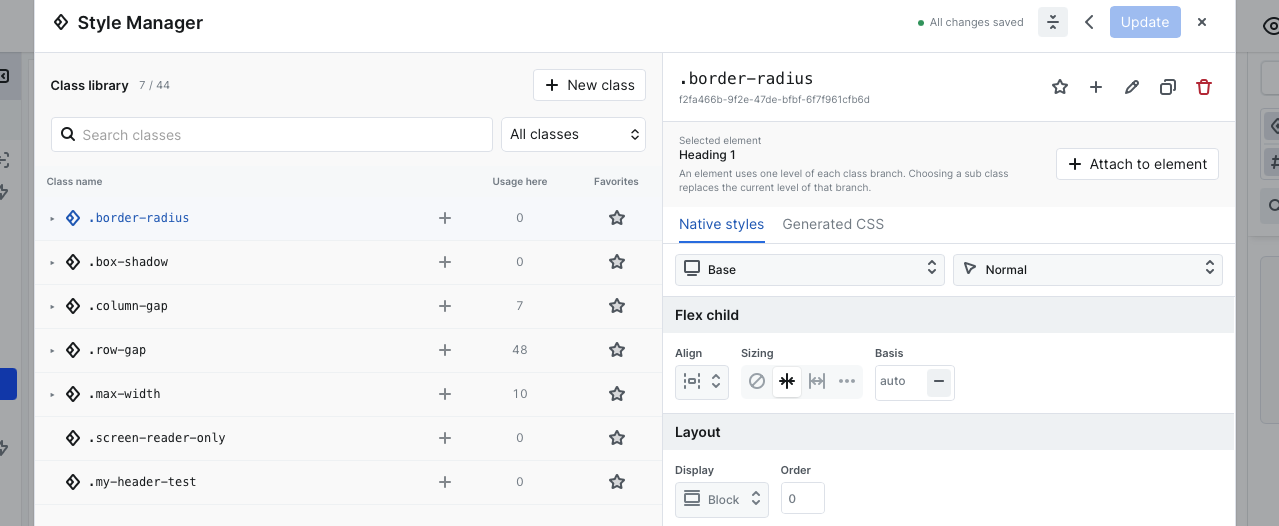
Style Manager in Mosaic Editor Plus brings those tasks into one searchable workspace inside the Mosaic Builder editor. It works with Mosaic’s existing classes and style controls, so you can organize your styles without maintaining a separate class system.
A class library beside your live page
Style Manager opens below the editor canvas. The page stays visible above it, letting you see the effect of a style change as you work. Drag the divider to give the canvas or the manager more room. When you need a larger workspace, expand Style Manager and return to the live preview afterward.
You can open it from the builder’s gear menu. When an element is selected, there is also a Style Manager button beside Mosaic’s class search field.
Inside the library, search classes by name or filter them by All classes, Favorites, Used here, and Not used here. Each class displays a usage count for the current editing document. Favorites help keep the classes you reach for most often close at hand; they are saved in your browser.
Create a class before you need an element
Sometimes you know the design rule you want before you know exactly where it belongs. Style Manager supports that workflow.
Create a class, open its styles, and define its properties using Mosaic’s native controls. You can set values across the available states and breakpoints, then assign the class to an element later. Opening and editing a class does notautomatically attach it to anything.
You can also create sub classes beneath a class, then continue adding deeper levels. This is useful when a shared base style needs distinct variations. Style Manager shows the hierarchy so you can browse and edit each level.
If you open the library without an element selected, the navigator remains where it is. Choosing a class provides the temporary editor context Mosaic needs to show its native style fields. Closing Style Manager clears that temporary selection.
Attach styles with a deliberate action
To use a class on a page, select an element in the canvas, choose the class in Style Manager, and click Attach to element. Use Detach class when that element should no longer use it.
While Style Manager is docked, you can click another element on the canvas and continue working with the new selection. When you close the manager, that element remains selected and Mosaic returns to its native # Local styles.
For sub classes, Mosaic stores one selected level per root class on an element. Choosing a different child under the same root replaces that root’s previous level; classes from other roots remain attached.
Understand a class before changing it
The usage count tells you how many loaded elements use a class in the current editing document. You can also open a listed usage to find an element that uses it. This makes it easier to answer questions such as “Is this variation in use on this page?” before making a change.
The count is intentionally scoped. Not used here does not mean unused across the entire site: another page, template, or external stylesheet may still depend on the class.
Style Manager also includes a read-only Generated CSS view. It lets you inspect the class’s current preview output without introducing a second place to edit its rules.
Manage classes through Mosaic
Style Manager provides actions to create, rename, and duplicate classes using Mosaic’s class system. For classes with no usage in the current document, it also offers deletion through Mosaic’s native confirmation flow.
Take care with shared styles. Editing a class can affect every element that uses it. Renaming or deleting one may also affect CSS or scripts that refer to its name outside the builder. Review those references and other pages before removing a class based on a local usage count.
Save within your existing builder workflow
The Update action uses Mosaic’s normal save operation. It saves the editing document, including changes made outside Style Manager. The manager shows whether Mosaic has unsaved changes, and its Undo action follows Mosaic’s change history.
Closing Style Manager does not silently save or discard your work. If changes are pending, you can keep editing or close the manager and leave those changes pending in the builder.
Start using Style Manager
Enable Style Manager in Editor Plus → Settings, save your settings, and reload the builder. The feature requires an active Mosaic Editor Plus license.
From there, try a simple workflow: create a class, set a few styles while watching the canvas, select an element, and attach the class. As your class library grows, search, favorites, nested sub classes, and usage counts make it easier to find and maintain the styles you already have.
Use cases: Where Style Manager saves time
Build a reusable design before placing it
Suppose you are creating a set of service cards. You can define a card class and its variations in Style Manager first, then attach the right class to each card as you build the page. You avoid repeating the same spacing, typography, and border settings element by element.
Find a style without searching through elements
When a heading or button needs an update, search the class library by name. You can inspect its styles immediately and see how many loaded elements use it in the current document. There is no need to hunt for an example element just to reach the class controls.
Make adjustments while watching the page
The bottom dock keeps the canvas visible as you edit. Change a class value, check the result, and continue in the same workspace. You can resize the divider when you need more room for either the preview or the controls.
Work through several elements in one session
While Style Manager is docked, click another element on the canvas to update the active selection. Choose a class and attach or detach it without repeatedly closing and reopening the manager.
Keep variations organized
For designs with several related versions—such as standard, compact, and featured cards—use nested sub classes. The hierarchy keeps the relationship visible, while Mosaic’s native style controls handle the properties.
How it speeds up everyday editing
Style Manager reduces the steps between finding a class, editing it, checking the result, and applying it. Search and favorites shorten the first step. Native controls let you work with the same states and breakpoints you already use in Mosaic. The live dock shortens the feedback loop, and explicit attach and detach actions make it clear which element receives a class.
The biggest gain comes from reuse: one thoughtful class change can update every element that uses it. Check the current-document usage list before editing a shared class, then review the live preview to confirm the result.