

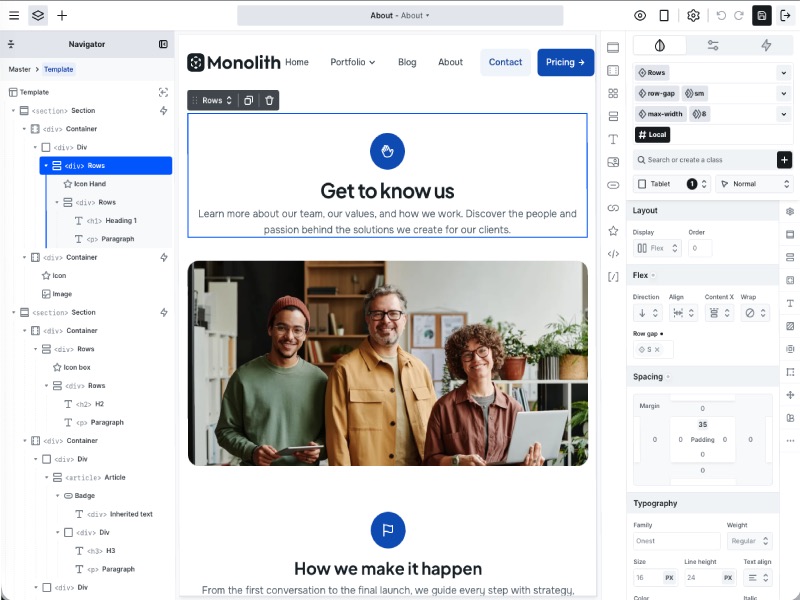
Every website starts with a few familiar building blocks. You add a section, place a container, create a grid, and repeat that structure as your design takes shape.
When you use the same elements throughout a project, keeping them close makes a difference.
The Element Shortcuts panel in Mosaic Editor Plus gives your frequently used Mosaic Builder elements a dedicated place in the editor. Add common structural elements quickly, pin your favorites, and organize your shortcuts around the way you build.
What Is the Element Shortcuts Panel?
The Element Shortcuts panel is a compact collection of quick-add buttons positioned between the editor canvas and the right sidebar.
It gives you direct access to selected elements without repeatedly browsing the Add panel. Click a shortcut to add its element using Mosaic’s element-insertion behavior.
The panel includes four structural elements by default:
- Section: Start a new section of your page.
- Container: Organize content within your layout.
- Grid: Build content structures with a grid.
- Rows: Arrange content using a row-based structure.
These defaults put common building blocks within reach from the moment you enable the feature.
Pin the Elements You Use Most
Different projects need different tools. A content-focused website may rely on headings, text, and images, while another project may use a different set of elements repeatedly.
Element Shortcuts lets you customize the panel through pin and unpin controls in the Add panel.
Find an element you use often and pin it to your shortcuts. When your needs change, unpin it to remove it from the panel.
Your shortcuts become a practical selection of the elements you actually use, helping you keep frequently needed tools easy to find.
Stay Focused on the Page You’re Building
Opening the Add panel is a normal part of building in Mosaic. But when you’re adding the same elements repeatedly, returning to it can interrupt your flow.
The shortcuts panel keeps those repeated actions close to the canvas.
For example, when building a page with several content sections, you can quickly add the structural elements you need as you work through the layout. When adding repeated content elements, pinning those elements makes them easier to reach throughout the project.
It’s a small change to the interface that can make everyday building feel more direct.
Start With Structure, Then Add Your Favorites
A useful shortcuts panel doesn’t need to contain every available element. Start with the default structural elements, then add the ones you reach for repeatedly.
For a typical content page, you might keep shortcuts for:
- Sections and containers for the page structure.
- Headings and text for written content.
- Images for visual content.
- Buttons for calls to action.
Choose the elements available in your Mosaic installation that fit your workflow. Keeping the selection focused makes each shortcut easier to recognize and use.
How to Enable Element Shortcuts
Getting started takes just a few steps:
- Download the Mosaic Editor Plus add-on and activate it on your site.
- Open Editor Plus → Settings in your WordPress dashboard.
- Find the Editor section.
- Enable “Show the element shortcuts panel.”
- Save your settings and open or reload the Mosaic editor.
- Open the Add panel and use the pin controls to customize your shortcuts.
Mosaic Builder must be installed and active, and you’ll need an active Mosaic Editor Plus license to use the editor enhancements.
Element Shortcuts and Style-Group Shortcuts
Mosaic Editor Plus includes two shortcut features, each supporting a different part of your workflow.
Element Shortcuts help you add elements to your page. Use them when building the structure or adding content.
Style-group shortcuts help you navigate styling controls such as Layout, Spacing, and Typography. Use them when refining an element’s appearance.
Together, they make frequently used building and styling actions easier to reach.
Make Room for a More Comfortable Workflow
Element Shortcuts work well alongside other Editor Plus workspace options.
Use the Add panel column controls to browse elements in one, two, or three columns while choosing what to pin. Adjust the left sidebar width when you need more room for settings. Then use your pinned shortcuts as you continue building on the canvas.
You can enable the options that suit your workflow and shape the editor around your preferences.
Build With Your Favorites Close
The best shortcuts are the ones you use without having to think about them.
With default structural elements, customizable pins, and a convenient position beside the canvas, the Element Shortcuts panel brings your everyday building blocks closer to your work.
Enable Element Shortcuts in Mosaic Editor Plus, pin your most-used elements, and give your next build a more focused workflow.