

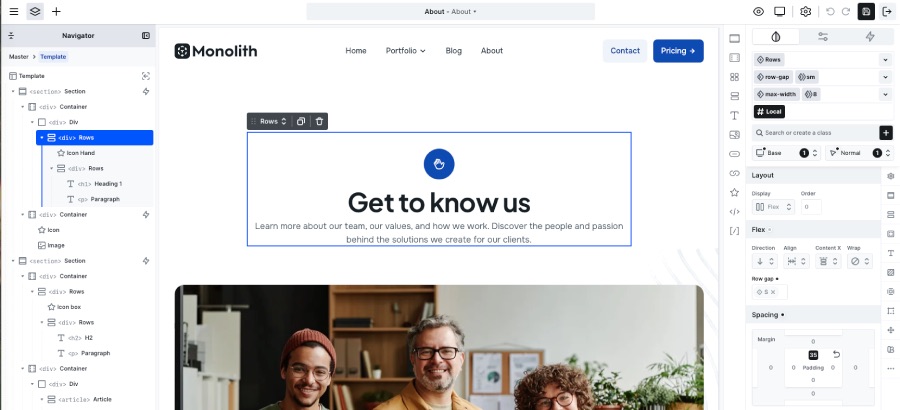
More Control. Fewer Clicks. A Better Mosaic Workflow.
Make everyday editing easier with visual layout tools, customisable shortcuts, and practical enhancements for Mosaic Builder.
Features of Mosaic Editor Plus
Mosaic Builder provides a powerful visual environment for creating WordPress websites. Mosaic Editor Plus builds on that experience by adding practical workflow tools to the places where you already work.
The plugin does not introduce a separate editing system or force you to learn a new interface. Instead, it enhances Mosaic’s existing toolbar, canvas, Add panel, style controls, and Elements Navigator.
You can enable only the features that suit your workflow from Editor Plus → Settings.
Editor workflow enhancements
1. Show the WordPress admin bar inside the editor
Enable the WordPress admin bar while working in Mosaic Builder.
This gives you quick access to familiar WordPress shortcuts without leaving the editor. You can navigate to the dashboard, visit the site, access account controls, and use other admin-bar items provided by WordPress or installed plugins.
The admin bar is shown during regular editing sessions and remains hidden in Mosaic’s live-preview mode so it does not interfere with the preview.
2. Replace the Update label with a save icon
Replace the text inside Mosaic’s Update button with a compact save icon.
This reduces the amount of space used in the top toolbar while keeping the original Update functionality intact. The button retains an accessible label and tooltip, so its purpose remains clear for keyboard and assistive-technology users.
Only the visual presentation changes—the native Mosaic save action is still used.
3. Replace the Exit menu with direct buttons
Mosaic normally groups its exit options inside a menu. Editor Plus can replace that menu with separate buttons beside the Update button.
The available shortcuts include:
- Exit to WordPress
- Exit to the frontend
- Edit the current page
This makes frequently used destinations available with one click. Middle-click behavior and modifier keys are also forwarded to Mosaic’s native exit actions where supported.
4. Resize the left sidebar
Add a draggable resize handle to Mosaic’s docked left sidebar.
Drag the handle horizontally to create more room for the Navigator, Add panel, or other sidebar content. The editor preview automatically adjusts to the new width.
You can also focus the handle and use the left and right arrow keys for keyboard-controlled resizing. The selected width is saved in the browser and restored the next time you open the editor.
5. Visual margin and padding controls
Adjust an element’s margin and padding directly on the canvas.
Visual controls appear around supported layout elements, including:
- Sections
- Containers
- Grids
- Rows
- Columns
Drag an edge to change its spacing, or focus a control and use the arrow keys for precise adjustments. Hold Shift to change the value in five-unit steps.
Editor Plus also supports linked editing:
- Adjust one side independently.
- Link opposite sides, such as top and bottom.
- Link all four sides.
- Hold Alt/Option to temporarily adjust opposite sides.
- Hold Ctrl or Command to temporarily adjust every side.
A reset action removes the locally defined spacing value and lets the element inherit its previous value again. Changes are written through Mosaic’s style system, including the currently selected breakpoint and style context.
6. Duplicate elements from the contextual toolbar
Add a Duplicate button to the contextual toolbar displayed above the selected element.
Clicking the button uses Mosaic’s native duplication method, creating another instance of the selected element without opening its context menu.
The button appears only when the current element supports duplication. Elements that Mosaic does not allow users to duplicate will not display the action.
7. Change the Add panel column layout
Switch Mosaic’s Add panel between:
- One column
- Two columns
- Three columns
A compact layout selector appears inside the Add panel. A wider multi-column layout makes it easier to scan a large element library, while the single-column layout provides more room for element names.
Your preferred layout is stored in the browser and restored automatically.
8. Visual CSS Grid Builder
The Visual Grid Builder provides an interactive way to configure Mosaic Grid elements.
Open it from a Grid element’s contextual toolbar or from its grid-template field. The builder lets you:
- Edit grid columns and rows.
- Enter a simple track count or a complete CSS Grid track value.
- Set column and row gaps.
- Switch between Mosaic breakpoints.
- Move child elements to different grid cells.
- Resize children across multiple columns or rows.
- Reset an individual child’s explicit grid position.
- Delete child elements from the visual layout.
- Preview elements that flow outside the explicit grid.
When the requested grid contains more cells than existing children, Editor Plus can create the missing Div elements while applying the grid.
You can apply your changes and continue editing inside the builder, or apply the changes and close it. Grid values are saved through Mosaic’s responsive style system rather than as separate frontend markup.
9. Element shortcuts panel
Add a vertical quick-access panel between the editor canvas and the right sidebar.
The panel initially includes shortcuts for commonly used layout elements:
- Section
- Container
- Grid
- Rows
Clicking a shortcut runs the corresponding native action from Mosaic’s Add panel.
You can also pin other available elements:
- Open the Mosaic Add panel.
- Hover over an element card.
- Click the pin button.
- The element is added to your shortcuts panel.
Pinned shortcuts can be rearranged with drag and drop. The panel supports scrolling and automatically scrolls when an item is dragged near its upper or lower edge.
Shortcut selections and their order are saved per website and WordPress user in the browser.
10. Style-group shortcuts panel
Add a vertical set of shortcuts beside the element style form.
Editor Plus creates a shortcut for each available style group, such as:
- Layout
- Typography
- Background
- Border
- Spacing
- Position
- Size
- Flex
- Grid
- Variables
- Other settings
Clicking a shortcut focuses the selected group and temporarily hides unrelated groups. This is especially useful when an element has a long list of style settings.
A Show All control restores the complete style form. Editor Plus does not filter the groups when the page first loads; filtering begins only after you select a shortcut.
11. Copy and paste dynamic sources
Add Copy and Paste controls to Mosaic’s Dynamic Sources field.
The Copy action stores all dynamic-source configurations attached to the current element. You can then select another compatible element and paste those sources without rebuilding them individually.
Important behavior:
- Pasting replaces the destination element’s existing dynamic sources.
- Pasted data is validated before it is applied.
- New identifiers are generated for pasted dynamic sources.
- Unsupported data is rejected instead of being applied incorrectly.
- Copy and paste work across editor tabs for the same website and user.
- Stored clipboard data expires after 24 hours.
- Dynamic sources and conditional visibility use separate clipboards.
If browser storage is unavailable, same-tab copying can still remain available for the current session.
12. Copy and paste conditional visibility
Copy an element’s complete conditional-visibility configuration and paste it onto another compatible element.
This includes all condition groups and their rules, making it much faster to reuse complex visibility logic.
Pasting replaces the destination element’s existing conditions. Editor Plus validates the copied structure before applying it and displays feedback when a destination element does not support the copied configuration.
Like the Dynamic Sources clipboard, copied conditions are available across editor tabs for the same website and user and expire after 24 hours.
Style workflow enhancements
13. Reset a defined value by clicking its field label
Mosaic indicates when a field has a locally defined value. Editor Plus lets you reset that value by clicking the field label directly.
This removes the local value and restores the value inherited from the active class, variable, breakpoint, or parent context.
Editor Plus reuses Mosaic’s native reset behavior, so the result is equivalent to using Mosaic’s built-in reset action without first opening the value popup.
14. Reset an entire style group from its status indicator
Click a style group’s status indicator to reset all locally defined values inside that group.
For example, if several Typography properties have been changed locally, you can clear them together instead of resetting every field separately.
The feature also supports Mosaic’s composite margin and padding controls by triggering their native reset actions.
Because this can affect several properties at once, it is best used when you intentionally want the complete group to return to inherited values.
Elements Navigator enhancements
15. Hide or show elements from the Navigator
Display a Hide or Show action when hovering over an eligible element in the Elements Navigator.
This controls Mosaic’s editor-only hidden state. It is useful when an overlapping, fixed, animated, or decorative element prevents you from selecting content behind it.
Hiding an element this way helps you work on the layout without removing it from the page or changing whether it appears on the frontend.
16. Hide elements from the frontend
Add a Hide in frontend option to the element context menu.
When enabled for an element, Editor Plus prevents that element from being rendered on the public-facing website. A visibility indicator appears in the Navigator so hidden elements are easy to identify.
You can use the indicator or context menu to make the element visible again.
This differs from Hide in editor:
- Hide in editor temporarily clears the editing workspace while leaving frontend output unchanged.
- Hide in frontend keeps the element available in the editor but prevents it from rendering for visitors.
The frontend feature does not rely on CSS such as display: none. The element is excluded through Mosaic’s rendering process.
17. Duplicate elements from the Navigator
Show a Duplicate action when hovering over a supported element in the Navigator.
This gives you a direct one-click alternative to opening the element context menu. The action uses Mosaic’s native duplication method and appears only when duplication is allowed.
18. Delete elements from the Navigator
Show a Delete action when hovering over a deletable Navigator item.
This removes the extra step of opening the context menu before deleting an element. Editor Plus checks Mosaic’s permissions before displaying or executing the action, so protected elements do not receive an invalid Delete control.
19. Display and change HTML tag names
Show semantic HTML tag names beside supported elements in the Navigator.
Examples include:
<section><div><main><article><aside><header><footer><p><h1>through<h6>
Displaying the tag makes the page structure easier to understand without opening every element’s settings.
The tag is also interactive. Clicking it opens a compact tag picker containing choices appropriate for the selected element. For example, a text element can switch between paragraph, heading, and Div tags, while a section can use section, header, or footer.
Changes are saved to the element’s native Mosaic tag setting.
Settings management
20. Export Editor Plus settings
Download the current Editor Plus configuration as a JSON file.
The export contains only supported plugin settings. It does not include:
- Your license key
- WordPress content
- Mosaic page content
- User information
- Other website data
This provides a convenient backup before changing your configuration or moving it to another website.
21. Import settings on another website
Upload a valid Editor Plus JSON export to restore or transfer a configuration.
Importing replaces the current Editor Plus settings, so exporting a backup first is recommended.
The importer validates the file format, version, size, plugin identity, and supported setting keys before saving anything. Unknown settings are ignored, and license information is never transferred.
An active Editor Plus license is required to import or export settings.
22. License management
The License page lets administrators:
- Activate a license.
- Deactivate a license.
- Check its current status.
- Review its expiration information.
- See the number of remaining activations.
- See when the license was last checked.
Editor enhancements and protected settings actions are available while the license is active. License status is periodically revalidated, and active licenses enable plugin update information from the configured update server.
23. Optional data removal during uninstall
By default, deleting the plugin does not automatically erase its saved configuration.
Enable Delete plugin data when uninstalled if you want Editor Plus to permanently remove its settings and license data when the plugin is deleted.
This also supports WordPress Multisite by processing the stored data for each site.
Performance and integration
Mosaic Editor Plus is designed to enhance the existing Mosaic interface rather than replace it.
Where possible, features call Mosaic’s native actions for operations such as duplicating elements, hiding elements, resetting values, opening Add-panel items, changing styles, and exiting the editor. This helps the enhancements remain consistent with Mosaic’s own history, permissions, breakpoints, scopes, and validation.
Most functionality runs only inside the Mosaic editor. The main exception is frontend visibility, which performs a small render-time check so elements marked Hide in frontend are excluded from public output.
Requirements
Mosaic Editor Plus currently requires:
- WordPress 6.9 or newer
- PHP 8.2 or newer
- Mosaic Builder installed and active
- An active Mosaic Editor Plus license for editor enhancements and protected settings actions
Getting started
- Install and activate Mosaic Builder.
- Install and activate Mosaic Editor Plus.
- Open Editor Plus → License.
- Enter and activate your license key.
- Open Editor Plus → Settings.
- Enable the enhancements you want to use.
- Save the settings and open the Mosaic editor.
Most options are disabled by default so you can build your preferred workflow gradually. The Add panel column controls and Visual CSS Grid Builder are enabled by default for new installations.
Editorial note: I intentionally excluded three claims that appear in older promotional material—double-click Navigator renaming, collapse-on-load/accordion style groups, and top-toolbar Library/Components shortcuts. Those features are not present in the current 0.1.4 implementation; the changelog specifically says the first two were removed.
Visual Editing & Layout
| Feature | Description |
|---|---|
| Visual Spacing Controls | Adjust margin and padding directly on the canvas for Section, Container, Grid, Rows, and Columns elements. Use dragging or arrow keys, link sides, and reset values. |
| Visual CSS Grid Builder | Edit responsive grid tracks, gaps, and child placement through a visual interface. |
| Resizable Sidebar | Drag to adjust the docked left sidebar’s width while the editor preview adapts alongside it. |
| Flexible Add Panel | Switch between one, two, or three columns to browse elements comfortably. |
Shortcuts That Fit Your Workflow
| Feature | Description |
|---|---|
| Element Shortcuts Panel | Keep frequently used elements within reach beside the canvas, with Section, Container, Grid, and Rows available by default. |
| Pin Your Favorites | Pin and unpin elements from the Add panel to build your own quick-add collection. |
| Drag-to-Reorder Shortcuts | Arrange shortcut icons in your preferred order and keep that order saved in your browser. |
| Scrollable Shortcuts | Scroll through overflowing elements, with automatic edge scrolling while dragging icons. |
| Style-Group Shortcuts | Jump to Layout, Spacing, Typography, and other available groups from a compact vertical panel. |
| Focused Style Editing | Show only the selected group’s controls after clicking a shortcut, while preserving Mosaic’s default group visibility on page load. |
Copy Settings Between Elements
| Feature | Description |
|---|---|
| Copy & Paste Dynamic Sources | Reuse an element’s complete dynamic-source configuration, including source settings, namespaces, and query options. |
| Copy & Paste Conditional Visibility | Transfer all condition groups and rules to another element without rebuilding them. |
| Copy Across Editor Tabs | Copy in one page’s editor and paste into another using the same site, WordPress account, and browser. Separate clipboards retain copied data for up to 24 hours. |
Pasting replaces the destination’s existing dynamic sources or visibility conditions.
A More Useful Navigator
| Feature | Description |
|---|---|
| Quick Navigator Actions | Enable Hide or Show, Duplicate, and Delete actions on hover for convenient access. |
| HTML Tag Labels & Editing | See HTML tags alongside element names and change supported tags directly from the Navigator. |
| Hide in Frontend | Exclude selected elements from frontend rendering while keeping them available in the editor. |
| Canvas Visibility Actions | Access Hide in frontend and Hide in editor from the canvas context menu. |
Everyday Editing Improvements
| Feature | Description |
|---|---|
| One-Click Field Reset | Reset a locally defined value by clicking its field label. |
| Style-Group Reset | Clear a group’s locally defined values by clicking its status indicator. |
| Contextual Duplicate Button | Duplicate supported elements directly from the contextual toolbar. |
| Compact Save Icon | Replace the Update label with a recognizable save icon. |
| Direct Exit Buttons | Put WordPress, frontend, and Edit Page actions beside the Update button. |
| WordPress Admin Bar | Keep familiar WordPress navigation available while editing in Mosaic. |
Your Workspace, Your Settings
| Feature | Description |
|---|---|
| Configurable Enhancements | Enable the optional tools and interface controls that suit your workflow. |
| Settings Import & Export | Transfer your Editor Plus configuration between websites using a JSON file, without including license information or WordPress content. |
| Optional Uninstall Cleanup | Choose whether plugin settings and license data are removed when Editor Plus is deleted. |
Build Your Next Website With Mosaic Editor Plus
Bring your favorite tools closer, reuse complex settings, and spend more time refining your design.
Get Mosaic Editor Plus
Requires Mosaic Builder and an active Mosaic Editor Plus license.