

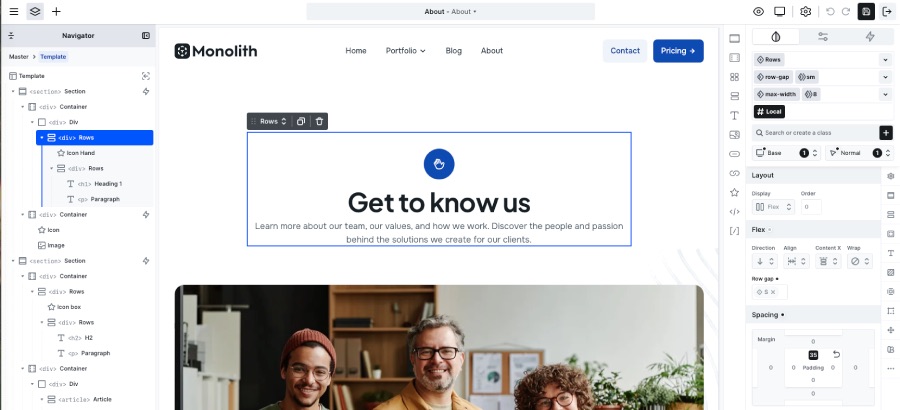
Great design takes concentration. Adjusting spacing, finding the right style controls, and repeating everyday actions shouldn’t interrupt it.
Mosaic Editor Plus brings visual controls, useful shortcuts, and flexible workspace options to Mosaic Builder, helping you spend more time shaping your website and less time navigating the editor.
Whether you’re designing a single page or managing client websites, Editor Plus makes the tools you use every day easier to reach.
Adjust Margin and Padding Directly on the Canvas
Fine-tune spacing where you can see its effect.
Visual margin and padding controls let you adjust Section, Container, Grid, Rows, and Columns elements directly from the editor canvas. Drag the edge controls or use arrow keys for precise changes. Hold Shift for larger, five-unit steps.
The controls synchronize with Mosaic’s existing spacing values, keeping your canvas adjustments and sidebar settings connected. A reset action makes it easy to clear a value when you want to start again.
Build CSS Grid Layouts Visually
Bring more control to your grid layouts with the visual CSS Grid builder.
Edit responsive grid tracks, adjust gaps, and arrange child placement through a dedicated visual interface. Open it from a supported Grid element’s contextual toolbar and work with the structure of your layout in view.
From simple columns to more varied compositions, it gives you a practical way to refine how your content fits together.
Reach Style Groups With a Click
Move between Layout, Spacing, Typography, Background, Border, Size, and other available groups using a compact vertical shortcuts panel.
The panel sits beside the style form, below the class and variable controls. Clicking a shortcut brings that group’s details into focus, so you can concentrate on the settings you’re editing.
When the editor first loads, Mosaic’s default group visibility is preserved. You choose when to switch into focused editing.
Keep Your Favorite Elements Close
Repeatedly adding the same elements can slow down page building.
The element shortcuts panel puts common building blocks within easy reach, with Section, Container, Grid, and Rows available by default. Pin additional elements from the Add panel to create a selection that fits your workflow.
You can also switch the Add panel between one, two, or three columns, making it easier to browse elements in the space you have.
Give Your Sidebar the Space It Needs
Some settings need more room. Your workspace should accommodate them.
Enable sidebar resizing and drag the handle to adjust the docked left sidebar’s width. The editor preview adjusts alongside it, helping you balance readable controls with a useful view of your page.
Make the Navigator More Useful
Editor Plus adds convenient actions and clearer element information to Mosaic’s Navigator.
Enable quick access to Hide or Show, Duplicate, and Delete actions, and display HTML tag names alongside element labels. You can also change supported tags directly from the Navigator.
The Hide in frontend option gives you separate control over whether an element appears on the published page. Visibility actions are also available in the canvas context menu, bringing them closer to the element you’re working on.
Reset Styles Without Extra Steps
Testing a design often means trying values, comparing results, and clearing changes.
Editor Plus offers two convenient reset options:
- Reset a field’s local value by clicking its label.
- Reset a style group’s locally defined values by clicking its status indicator.
These controls make it easier to revisit a styling decision without opening additional value menus.
Put Everyday Actions Within Reach
Small editor improvements can make repeated tasks feel easier.
Replace the Update label with a compact save icon, add Duplicate to the contextual toolbar, or replace the Exit menu with direct navigation buttons beside Update. You can also show the WordPress admin bar while editing for convenient access to dashboard tools.
Enable the enhancements that suit the way you work.
Take Your Settings to Your Next Website
Once you’ve configured Editor Plus, you can reuse that setup.
Export your settings as a JSON file and import them into another website. This is especially useful when you want a consistent editing experience across client projects or development environments.
Settings exports exclude license information and WordPress content. An optional uninstall cleanup setting also lets you remove Editor Plus settings and license data when deleting the plugin.
Make Your Next Build Feel Easier
Mosaic Editor Plus brings thoughtful improvements to the work you already do: adjusting spacing, arranging grids, navigating elements, refining styles, and moving between the editor and WordPress.
Install Mosaic Editor Plus, activate your license, and configure your workspace for your next project.
Mosaic Editor Plus requires Mosaic Builder to be installed and active. A valid Editor Plus license is required to use editor enhancements and save settings.